Create a Contact List (Static, Dynamic, or Hybrid)
Build lists that maintain themselves — hand-picked, filter-driven, or both — with entry and exit rules and an optional attached sequence.
Before You Begin
-
Access to the CRM — lists live under
Sales > CRM > Lists. - A name for your list. The form marks List Name as required with an asterisk and won't create the list without one.
- A sense of who belongs on the list — the list type you pick depends on whether membership should be hand-picked, filter-driven, or both.
A list is a saved group of CRM contacts whose membership is maintained over time — by you, by filters, or by both. That maintenance is the point: segments drift as contacts change, and a list that updates itself keeps every downstream action pointed at the right people.
You'll use lists wherever Zyntro needs a defined audience — attach a sequence to a list, or use the list in a FLOW so automation reacts when contacts join or leave. This guide walks through the creation form at Sales > CRM > Lists and each choice along the way.
Steps
Open the Lists page
Go to Sales > CRM > Lists. This is where your lists live, and where new ones are created.
Name and describe the list
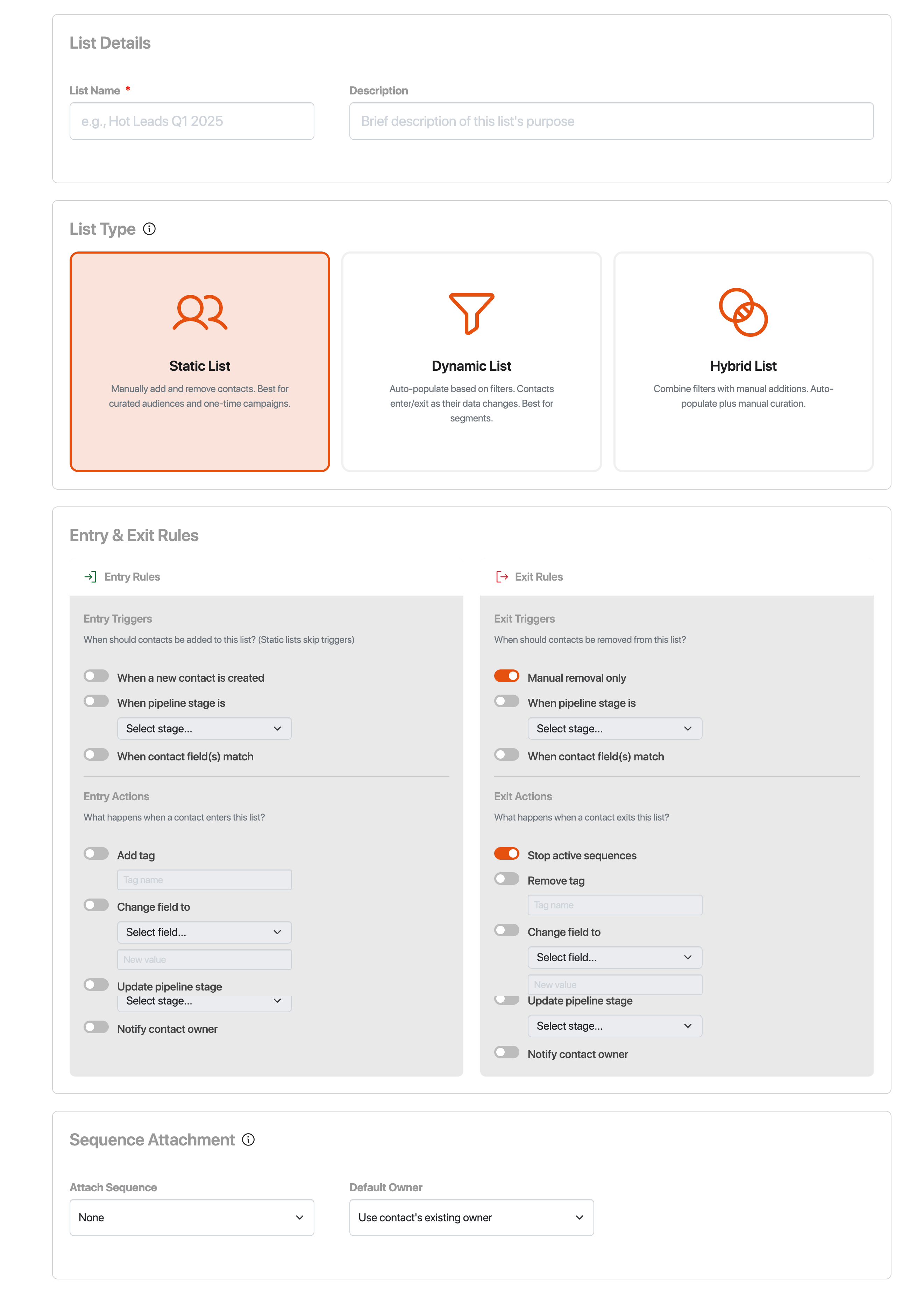
Enter a List Name — the field is marked required with an asterisk, and the list can't be created without one. Choose a name that says who's on the list, like Hot Leads Q1 2025.
Optionally add a Description noting the list's purpose. One line here saves you from reverse-engineering the filters six months from now.
Choose the list type
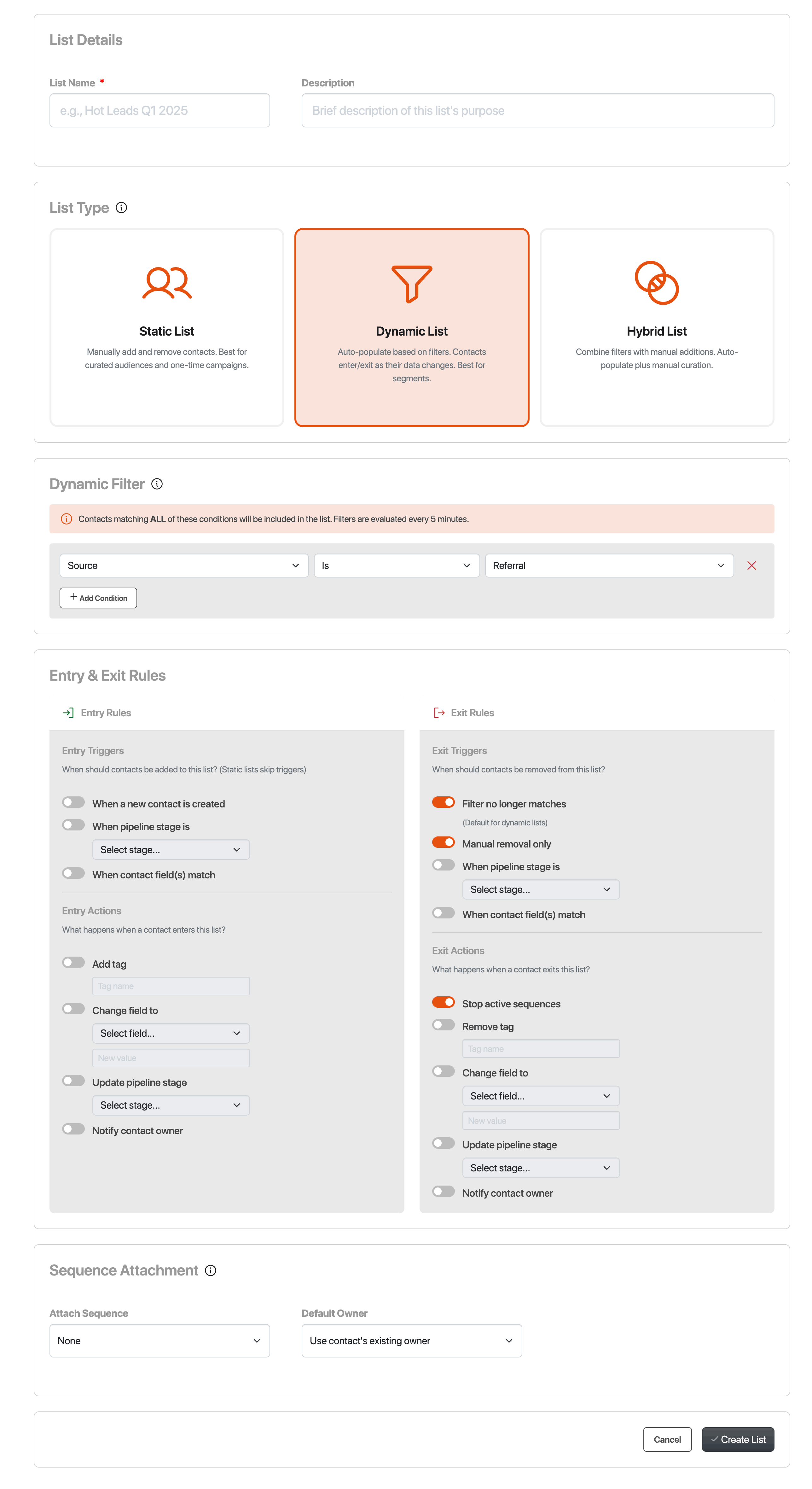
Select Static, Dynamic, or Hybrid. This choice shapes the rest of the form:
- Static — you add and remove contacts by hand. Membership changes only when you change it.
- Dynamic — the list populates itself from filter conditions and keeps re-evaluating them, so contacts join when they match and leave when they stop.
- Hybrid — filters plus manual curation. Both the filter controls and manual add are available, and your hand edits win: a contact you remove manually stays removed even if they still match the filters.
Choosing Dynamic adds the Dynamic Filter section to the form and adjusts the default exit trigger. Static lists skip triggers entirely.
Define the filter conditions (Dynamic and Hybrid)
For a Dynamic or Hybrid list, build the filter conditions in the Dynamic Filter section. Each row is a field, an operator, and a value — for example, Source | Is | Referral. Conditions combine with AND, so a contact must match all of them to be included.
Use Add Condition to append more rows, and keep the set tight: every extra condition narrows the list further.
Set entry triggers and actions
Entry triggers let the list react when a contact joins. Toggle any of When a new contact is created, When pipeline stage is (with a stage selector), or When contact field(s) match.
Then set the entry actions — what happens the moment someone joins: Add tag (enter a tag name), Change field to (pick a field and its new value), Update pipeline stage, or Notify contact owner. Static lists skip this section.
Set exit triggers and actions
Exit triggers set when a contact leaves: Manual removal only, Filter no longer matches (the default for dynamic lists), When pipeline stage is, or When contact field(s) match.
Exit actions define what happens on the way out: Stop active sequences, Remove tag, Change field to, Update pipeline stage, or Notify contact owner. Stop active sequences matters most when a sequence is attached — it ends a contact's active sequences when they leave, so messaging doesn't continue to someone who no longer belongs.
Attach a sequence (optional)
Under Sequence Attachment, the Attach Sequence dropdown starts at None. Choose a sequence to attach it to the list.
If you attach one, check the Default Owner dropdown. It defaults to Use contact's existing owner, so each contact's sequence runs under their current owner unless you choose someone else.
Create the list
Select Create List. The list is saved and membership maintenance begins: dynamic lists re-evaluate their filters every 5 minutes, static lists wait for your changes, and hybrid lists do both.
Add contacts in bulk from Manage Contacts
From the Manage Contacts section, filter your contacts and move the matching ones into a list in bulk. This is the fastest way to populate a static list or hand-curate a hybrid one.
Result
Your list is saved and its membership now maintains itself according to its type: dynamic lists add and remove contacts as filters are re-evaluated every 5 minutes, static lists change only when you change them, and hybrid lists combine both. From here, the list becomes the audience for whatever comes next — attach a sequence to it, or use it in a FLOW to trigger automation such as sending an email template when a contact joins and enrolling them in a sequence after N days.
You can edit or delete the list at any time from Sales > CRM > Lists. There is currently no way to duplicate a list, so a near-copy means creating a new one and re-entering its settings.
Info: Creating a list sends nothing by itself. A list manages membership — who belongs, over time. To message the contacts on one, send a broadcast, attach a sequence to the list, or use the list in a FLOW.
Troubleshooting
Dynamic filters are evaluated every 5 minutes, so newly matching contacts show up on the next cycle rather than instantly. If they're still missing after that, check every condition row — a contact must match all of them, and one mismatched condition is enough to leave them off.
That's expected. On hybrid lists, manual removal sticks even when the contact still matches the filters — your curation overrides the automation. To bring the contact back, add them manually or change the filter conditions so they no longer match.
List creation manages membership only — it doesn't send email or enroll contacts by itself. To message the list, send a broadcast, attach a sequence under Sequence Attachment, or use the list in a FLOW.
Static lists skip triggers — contacts are added and removed manually. If you want actions to fire when contacts join or leave, set the list type to Dynamic or Hybrid.
