Create a Regular Email Template
Plain, personalized emails built for inbox delivery — the template type Zyntro recommends for broadcasts and sequential emails.
Before You Begin
-
A signature assigned for each member who will send from this template. Signatures are configured per member in
Me > Members. - If you plan to use smart tags marked with *, have the specific contact or appointment record you want to personalize against selected before inserting them.
Regular email templates are Zyntro's plain, simple email format: a name, a subject line, and a rich-text body with smart tag personalization. No drag-and-drop layouts, no design blocks — an email that reads like you wrote it to one person.
That plainness is deliberate. Inbox filters tend to reward emails that look like personal correspondence, so when deliverability and personalization matter more than visual polish, this is the template type to reach for. Zyntro recommends regular templates for broadcast emails and sequential emails, and positions the Visual Builder for newsletters and design-heavy marketing campaigns.
This guide walks you through creating one, personalizing it with smart tags, and drafting it with AI if you want a starting point.
Steps
Open the editor and choose Regular Template
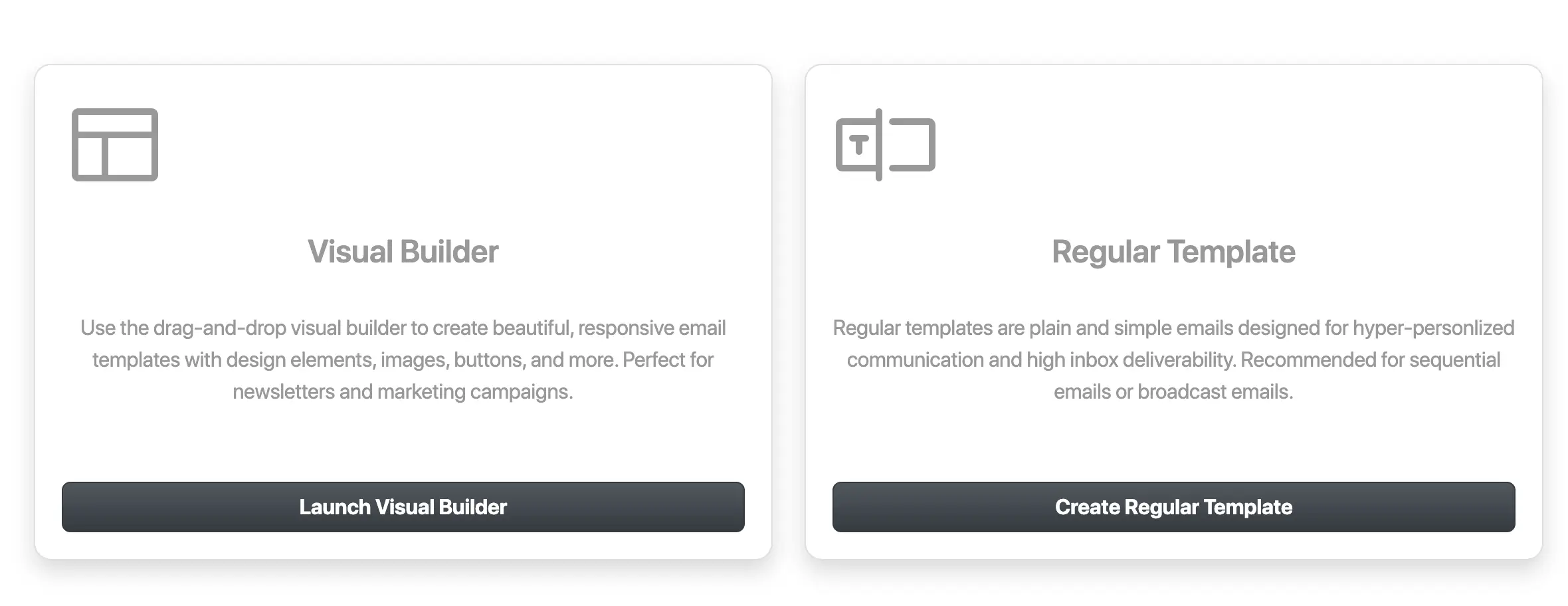
Go to Communications > Email > Email Templates. On the template-type selection screen you'll see two options side by side: Regular Template and the Visual Builder. Choose Regular Template.
Choosing between them is straightforward: regular templates are plain emails built for deliverability and personalization, while the Visual Builder handles drag-and-drop design for newsletters and marketing campaigns. If your email needs to land in the inbox and read like a personal note, you're in the right place.
Name the template and write the subject
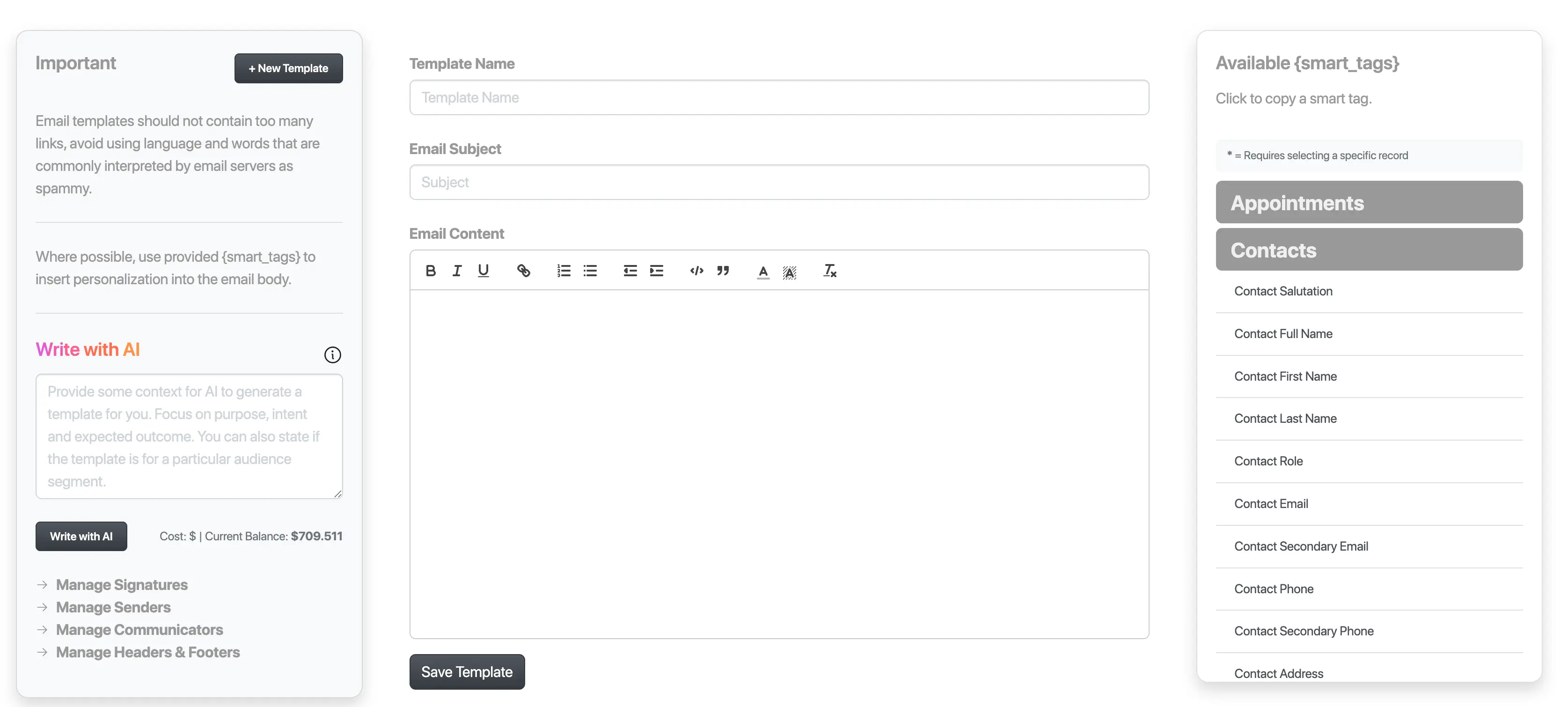
Enter a Template Name at the top of the editor. This is how you'll recognize the template later in pickers and lists, so make it descriptive — for example, Q3 client check-in.
Then write your Email Subject. This is the line your recipient sees in their inbox, so keep it specific and human.
Compose the body
Write your email in the rich-text Email Content editor. You have the formatting you'd expect from a plain email: bold, italic, underline, links, ordered and unordered lists, indent, code, quote, text color, and clear formatting.
As you work, the editor displays guidance to protect deliverability: limit the number of links and avoid spam-trigger wording. Plain, personal-looking emails reach the inbox more reliably than heavily designed ones — that is exactly what this template type is for.
Personalize with smart tags
Smart tags are merge fields that pull real details from your contacts and appointments. Because Zyntro tracks these relationships natively, the tags resolve against actual records when your email is sent.
In the Available {smart_tags} panel on the right, click a tag to copy it, then paste it into your body wherever the personalized detail should appear. Tags are organized into Appointments and Contacts categories. Tags marked with an asterisk (*) need a specific record selected before they can be used.
Draft with AI (optional)
If you'd rather start from a draft, use Write with AI. Describe the template's purpose, intent, and expected outcome — and optionally the audience segment it targets — and Zyntro generates the template for you. You can then edit the result like any other body.
AI generation is billed per run against the account balance shown in the editor, so you always know where you stand.
Save the template
Click Save Template. The editor saves templates only — there is no send action here. Sending happens through broadcasts or sequential emails, where your template appears in the template picker with an inline preview.
Templates stay fully reversible: edit, duplicate, or delete any of them at any time.
Result
You now have a saved regular email template — a named, subject-lined, smart-tag-personalized email built for inbox delivery. When you create a broadcast, both regular and Visual Builder templates appear in the picker with an inline preview, so you can confirm the right one before sending. The same templates are recommended for sequential emails, so one well-built template can carry both one-off broadcasts and multi-step follow-up.
Troubleshooting
Cause: Tags marked with * depend on a specific record being selected.
Select the specific contact or appointment record the tag refers to before using it. Starred tags cannot be used without a record selected.
Cause: The template editor only saves templates.
This is expected. To send, create a broadcast or a sequential email and select your template there — both regular and Visual Builder templates appear in the picker with an inline preview.
Follow the deliverability guidance shown in the editor: limit links and avoid spam-trigger wording. Regular templates are plain by design, which works in your favor — if a campaign truly needs heavy visual design, that is the Visual Builder's role, but plain templates are the safer choice for inbox placement.
