Build Email Templates in the Visual Designer
Drag components onto a canvas, style each element, and save a responsive template for newsletters and marketing campaigns.
Before You Begin
-
Access to the email tools under
Communications > Emails. - A clear sense of the email's purpose — the Visual Builder is positioned for newsletters and marketing campaigns, while plain, high-deliverability sends belong to the Regular Template path.
Some emails need to look designed — a newsletter, a campaign announcement, a seasonal promotion. The Visual Designer is Zyntro's path for those: you build the layout by dragging components onto a canvas, style each element in a settings panel, and check the result on desktop and mobile before saving.
The template you save is a reusable design within Zyntro's email system. Because email is a native Zyntro channel, those designs sit alongside your contacts, lists, and sending tools in one platform — not in a separate design app that has to guess at the rest of your business.
This guide walks through the full flow: launching the builder, naming the template, composing and styling the layout, previewing, and saving.
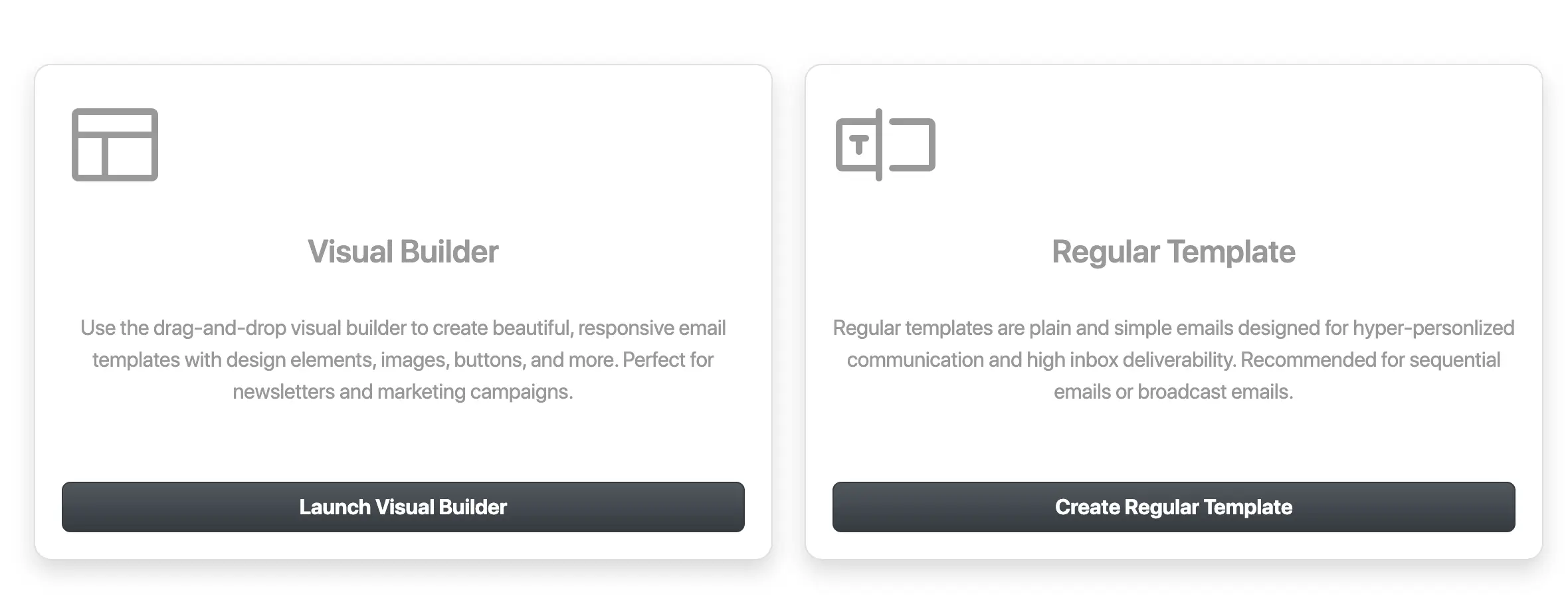
Tip: The template creation screen offers two paths. Launch Visual Builder is positioned as perfect for newsletters and marketing campaigns — choose it when the send needs visual design. Create Regular Template produces plain, simple emails designed for hyper-personalized communication and high inbox deliverability, such as sequential or broadcast emails. Decide which job you're doing before you start building.
Steps
Open the template creation screen and launch the Visual Builder
Go to Communications > Emails and start creating a new email template. On the creation screen, choose Launch Visual Builder.
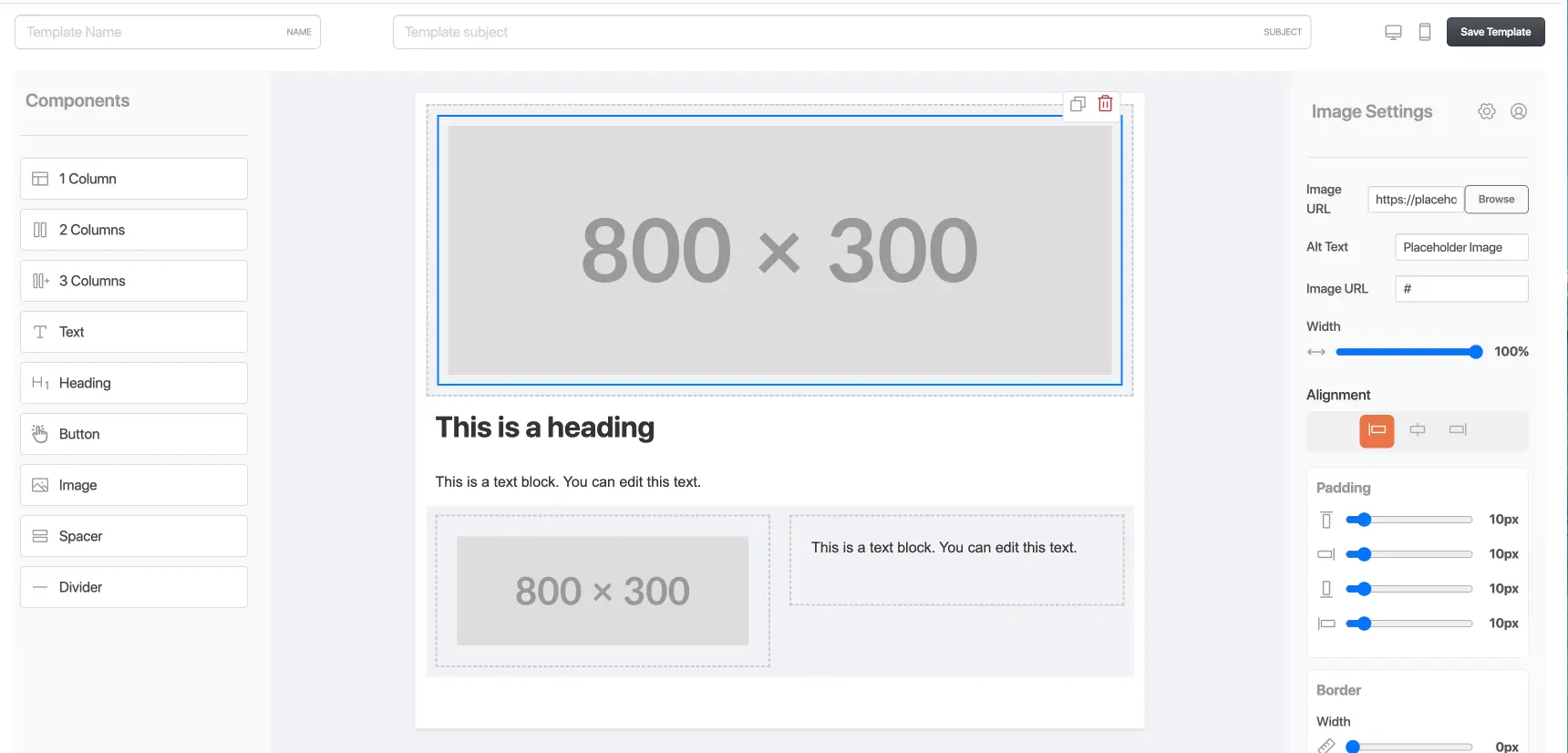
The builder opens with three working areas: a Components panel on the left, the canvas in the center, and a settings panel on the right. The top bar holds the template's name and subject, the preview toggles, and Save Template.
Name the template and set the subject
In the top bar, enter the Template Name (labeled NAME) and the Template subject (labeled SUBJECT). The name is how you'll recognize this template later; the subject is saved with the template as part of the design.
Doing this first means anything you save along the way is identifiable rather than anonymous.
Drag components onto the canvas
Build the skeleton first. Drag a layout component from the left-hand Components panel onto the canvas — 1 Column, 2 Columns, or 3 Columns — to define a section's structure. Then drop content components into it: Text, Heading, Button, or Image. Use Spacer to add vertical breathing room and Divider to separate sections.
A typical newsletter arrangement: a full-width Image at the top, a Heading, a Text block for the body, a Button for the call to action, and a Divider before the sign-off.
Style the selected element in the settings panel
Select any element on the canvas and its settings load in the right-hand panel. Image Settings, for example, cover the Image URL with a Browse picker, Alt Text, a link URL, a Width slider, Alignment, Padding sliders, and Border width. Every element you drag in is styled through this same panel, so the rhythm of the work is always select, adjust, check.
Pull assets from the library with Browse
The Browse picker next to the Image URL opens your brand's library, where you can pick existing images, graphics, or backgrounds, generate an image with AI, or upload something on demand. Anything uploaded through this modal is immediately usable on the canvas and is also saved to the library for future templates.
This keeps your visual assets in one place instead of scattered across past emails.
Preview on desktop and mobile
Use the desktop and mobile preview toggles in the top bar to check the design at both sizes. Switching between them shows no visible delay, so flip back and forth as you adjust widths, padding, and alignment. The components are responsive, but the preview confirms the arrangement actually reads well on a phone before you commit.
Save the template
Click Save Template in the top bar. This persists the name, subject, and every component with its settings as a reusable template.
Save at milestones, not just at the end — the builder has no auto-save, and saved templates can be edited, duplicated, and deleted, but there is no version history. Once a saved template is overwritten, the previous version is gone.
Result
You now have a saved, responsive email template in Communications > Emails — a named design with a subject, built from drag-and-drop components and styled element by element. Reopen it to edit it, duplicate it as the starting point for a related design, or delete it when it's no longer needed.
Info: The Visual Designer produces templates — it has no send controls. When the design is ready, sending happens through the email tools in Communications > Emails, such as broadcasts and sequences.
Troubleshooting
The builder does not auto-save; changes persist only when you click Save Template. Rebuild the lost parts, and from now on save at each milestone — after the layout, after styling, after the final preview — rather than only once at the end.
That's expected. This builder creates templates only. Save the template, then use the sending tools under Communications > Emails — broadcasts for one-to-many sends, sequences for multi-step follow-up.
Return to the template creation screen and choose Create Regular Template instead. That path produces plain, simple emails designed for hyper-personalized communication and high inbox deliverability — the recommended route for sequential or broadcast emails.
